

Start here
Find your way around, download a map, and save your first waypoint.
Glassing lets you plan routes, record where you go, and save places on a map. Download maps before you leave cell service.
Find the controls
Tap the Glassing logo in the top-left corner for Download maps, your downloaded maps, Import a file, and Settings.
The bar at the bottom holds the tools you use on the map. Start in Explore to search, take a photo, open saved items, or change layers. Learn the map controls.
Download a map
Move the map to the area you need. Tap the Glassing logo, then Download maps.
Tap each grid you want to download. You can select up to 16 at once. Zoom in if the bar asks you to. Tap a selected grid again to remove it from the selection.
Check the size in the bottom bar, then tap Download and confirm. Glassing names the map for the area. Grids that touch a map you already have are added to that map, which is renamed for its bigger area.
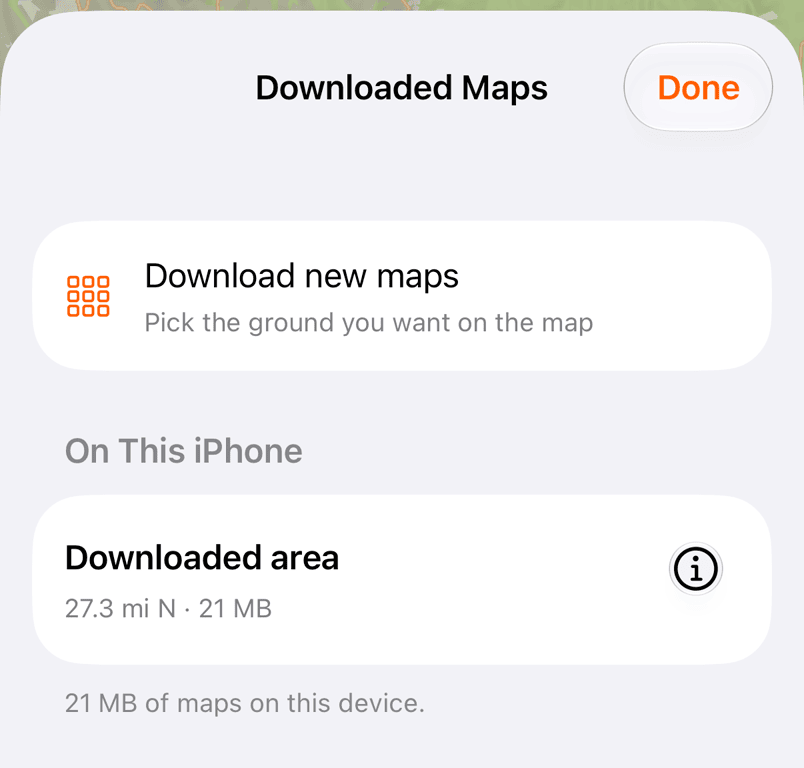
Open the downloaded maps list from the same menu to check progress. Wait for the download to finish before leaving service. Glassing checks all the downloaded files before marking the map complete. When updating an existing map, it keeps the installed copy until the replacement passes those checks.
Send maps from glassing.app
Sign in at glassing.app/map with the account your iPhone uses. On iPhone, at the bottom of the sidebar, lists the maps on your phone, and their edges show on the map in green.
Tap Send maps to iPhone, pick grids the same way you do on the phone, and tap Send. A saved route, track, or trip says whether its ground is on your phone, and Send to iPhone picks the grids it crosses for you.
Your phone downloads sent maps the next time Glassing is open on Wi-Fi. Until then they wait in the downloaded maps list, and on cellular their row offers Use cellular. You can withdraw a sent map on glassing.app until it starts downloading.
Check before you go
Open your destination in airplane mode. Check the map at the zoom levels you expect to use, then try searching for a nearby place.
Downloaded terrain, topo, trails, and available imagery work without a signal. You can record, save waypoints, and follow routes offline. Place-name search uses the names in your downloaded maps.
Downloaded grids include Topo, available imagery, Slope, Ownership, and Cell Coverage. Switching layers or carriers in that area does not need a connection. Viewing an area online is not the same as downloading it.
Try a few things
- Tap the map to inspect a spot. This does not save it.
- Long-press the map to drop a waypoint, then tap Save.
- Switch to Record and tap the record button to start a track.
- Open Saved to find your waypoints, tracks, routes, and trips.
A waypoint is a saved location. A route is a line you plan to follow. A track records where you went. A trip groups your saved items.
To exchange meeting spots over satellite messaging, see Share coordinates with Garmin inReach. You can paste a whole message into search.
Manage downloads
The downloaded maps list shows each map's size and its distance from you. Deleting a downloaded map frees storage. Your saved waypoints, routes, and tracks remain.
Updates download automatically over unmetered Wi-Fi. A map's row tells you when an update needs your attention. Glassing asks before using cellular data for a download.
If a download stalls, use the retry offered on its row. A download started without a connection waits for one, and the Glassing logo has an orange ring until it can start. If the map is blank while offline, tap the nearby downloaded-map suggestion or return to an area you downloaded.
Need help? Email support.