

Waypoints and photos
Save a location, move its pin, and attach photos.
In Explore, long-press the map to drop a waypoint and open its save form. Choose a symbol, add a name or notes if you want, then tap Save. A name is optional.
A quick tap only inspects a spot. Use Save in that panel to keep it.
Use the save form
Waypoints, routes, and tracks use the same form. File under shows the trip that will contain the item. Tap it to choose another trip. This changes only the item you are saving.
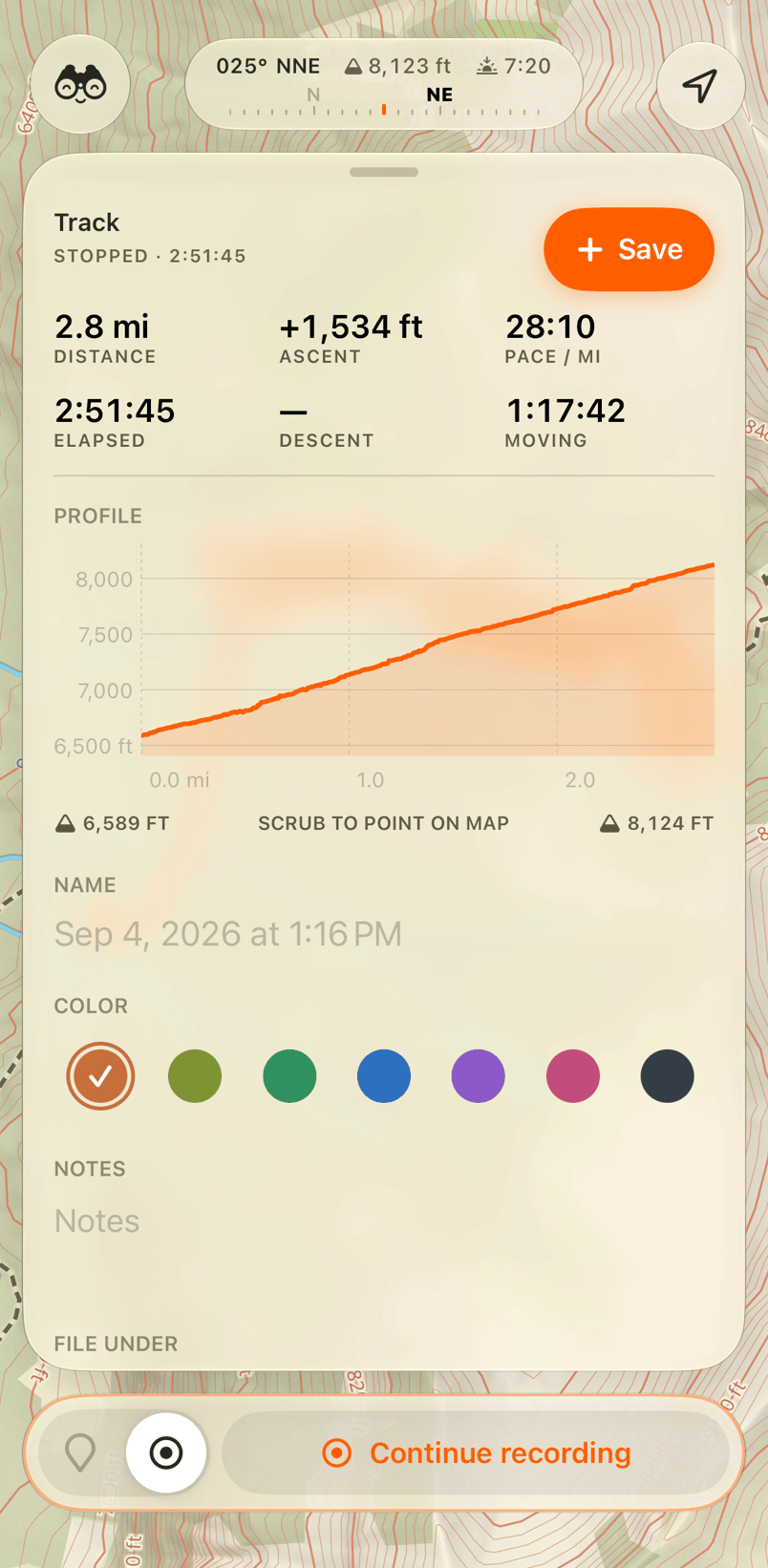
After saving, the form becomes the item's panel. Open it later by tapping the pin or finding it in Saved.
Edit a waypoint
Open the waypoint's panel to change its name, symbol, notes, or trip. Picking a symbol does not rename the waypoint. Changes to saved items are kept as you make them or leave a text field.
With the panel open, drag the pin to move it. Its stored elevation stays unchanged.
Hide on map removes the pin from this device's map but keeps it in your lists and exports. Delete removes it from your library and other devices when they sync. See Trips and saved items.
Take or attach a photo
Tap the camera in Explore and press the shutter. With a current location, Glassing saves the photo and creates a waypoint. Both go into the current trip.
Without a location, the photo still saves. Find it in the trip's photo strip; it has no pin on the map.
To attach a photo to an existing waypoint, open that waypoint's panel. Take opens the camera, and Add chooses a photo from your library. Taking a photo here does not move the pin or create another one.
Tap a photo to open it. Swipe through the strip, pinch to zoom, and pull down to close. Sharing a photo removes its location, in every form a camera or editor can write it.
For GPX, KML, and KMZ files, see Import and export.
Need help? Email support.