

Import and export
Bring in GPX, KML, or KMZ files and share saved items as GPX.
Tap the Glassing logo, then Import a file. Choose a GPX, KML, or KMZ file. You can also open a file in Glassing from AirDrop, a mail attachment, or another app's share sheet. Max file size is 256 MB.
Review an import
The preview shows the file's contents and suggested trip. Check the items you want and the filing choice, then tap Import. Nothing enters your library before that tap.
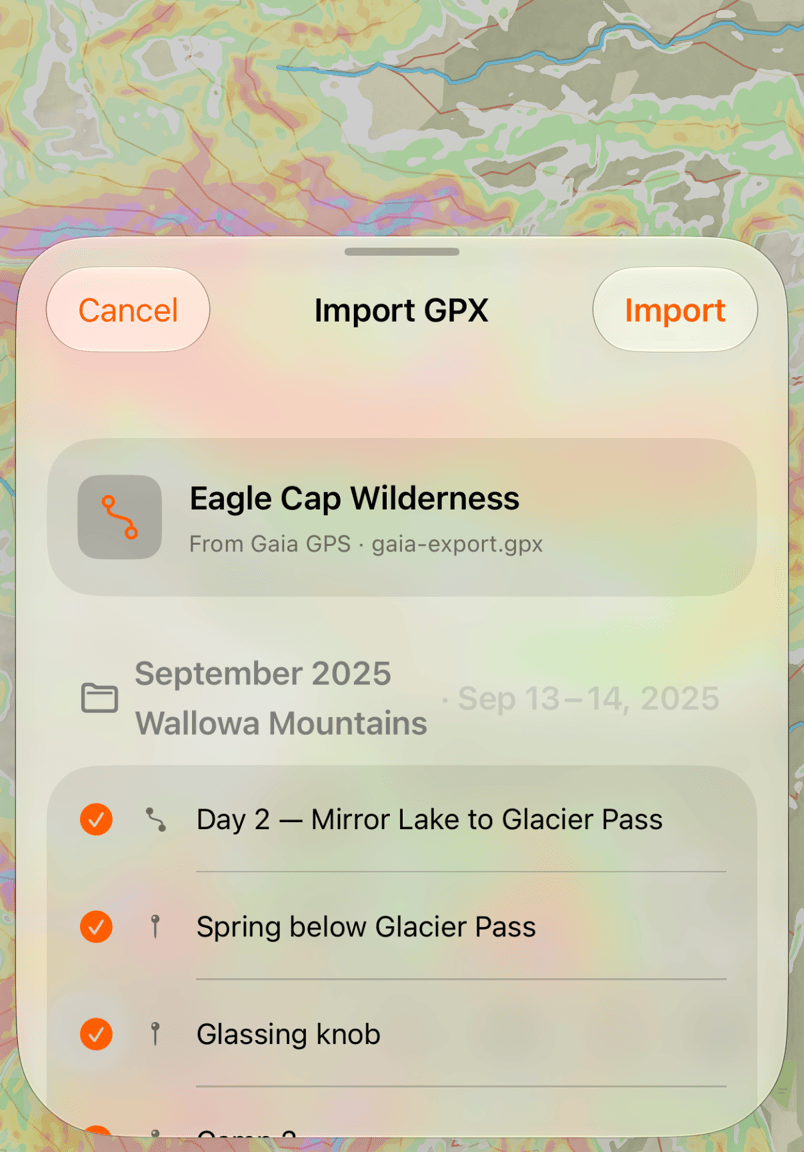
Likely duplicates start unchecked. Glassing compares locations and lines rather than names. Review those suggestions: checking an item imports another copy even if you already have it.
KMZ photos import with their waypoints. Areas drawn as polygons do not import. Glassing does not fetch images or other content linked from a file.
Export saved items
Open a waypoint, route, or track, tap Share, and choose GPX file. For a trip, open the trip's action menu and choose Share, then GPX file. With no signal, the same place reads Export GPX. The library also offers an export of everything saved.
Choose a destination in the iOS share sheet, such as Files, AirDrop, or another app. Export creates a GPX file and leaves the originals in Glassing.
GPX contains locations and lines. Anyone you send it to can read those coordinates. Photos are not included. Share photos separately from the photo viewer. Glassing removes the location from those copies, including any added by a photo editor.
Need help? Email support.