

Trips and saved items
Find what you saved, change its trip, or hide it from the map.
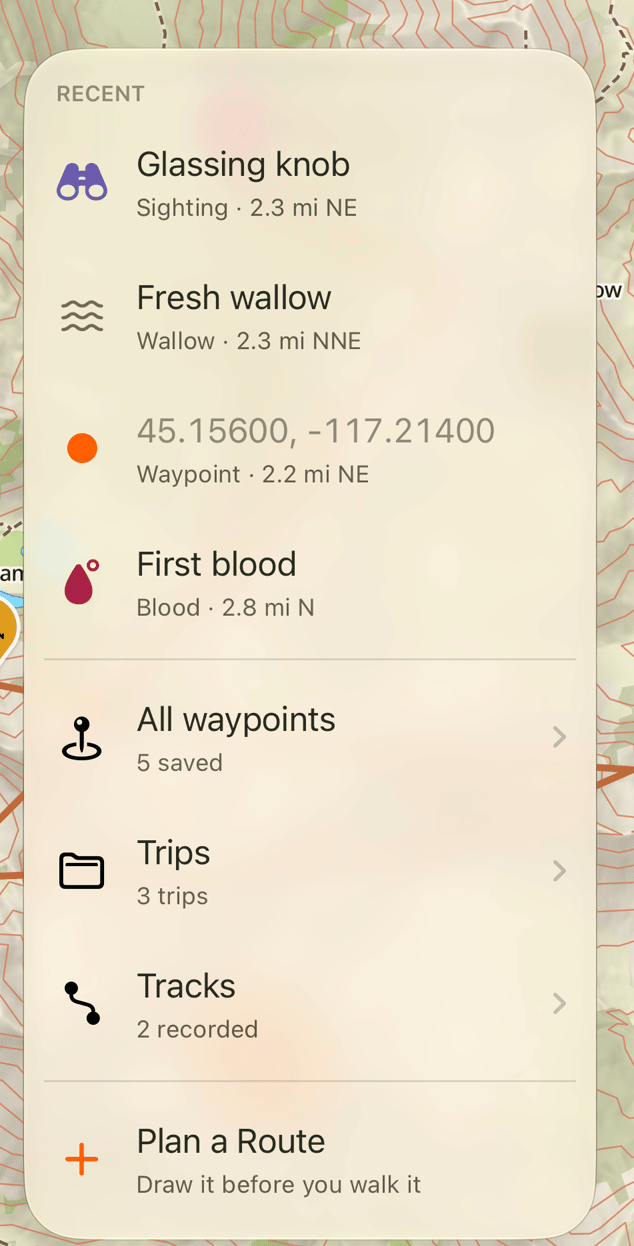
Tap the bookmark icon in Explore to open Saved. Your most recent waypoints appear at the top. Open the waypoint, track, route, or trip list to find more.
How trips work
A trip groups waypoints, routes, tracks, and photos. Glassing files new items into the current trip automatically.
For automatic filing, saves in the same area within four days of a trip's last item join that trip. Otherwise, Glassing creates a trip named for the place and month.
The trip chip above the bottom bar shows the current trip. It may be covered while a panel is open.
On glassing.app, double-click a trip's name to move the map to everything in it.
Plan a trip through stops
Plan a route, then choose Add a stop to add the next place after it, or Camp here and walk back for an overnight. Add stops one at a time from start to finish; to end where you started, tap your start's pin when you add the last stop. Each leg gets its own route; tap a leg's routes to choose another. Tap a stop's Stop to make it a Camp for the night; while you pick where a night goes, campsites near the route are listed and shown on the map.
On iPhone, the stops are listed in the panel at the bottom, grouped by day when there are nights. Tap a stop to change it, hold and drag it to change the order, or swipe it to delete it. A stop between the start and the end can also be deleted from its Stop menu. Pull the panel up to see the totals and the elevation profile. On glassing.app, drag a stop by its handle to change the order, or click its place to change it.
Save keeps a plan with no nights as one route, with a waypoint at each stop on the way. A plan with nights saves as a trip with a route for each day and a waypoint at each stop, and syncs to your other devices like any trip; navigate each day from the trip once it's saved. Planning is free; saving needs a subscription.
Choose a trip yourself
Open the trip chip or the trips list to set the current trip. Future saves go there. Existing items stay where they are.
A manually chosen trip stays current while you keep adding to it. After four days without additions, a save elsewhere can return to automatic filing. There is no need to end a trip.
To move just one item, open its panel and change File under. Choosing New trip… there creates a trip for that item; it does not change the current trip.
Hide or delete
Hide an item or trip to remove it from this device's map. Hidden items remain in Saved and in exports. Hiding does not affect your other devices or stop a trip from receiving new items.
Deleting a saved item removes it from your library. With sync enabled, that deletion reaches your other devices too. Use Hide when you only want less on the map.
Use a trip's action menu to rename it, set it as current, change its visibility, or share it as a link or a GPX file. Share a link explains links, and Import and export explains files.
Need help? Email support.